
|
Site Sponsored By: SQLDSC - SQL Server Desired State Configuration
|
|
SQL Server 2008: Table Valued ParametersBy Kathi Kellenberger on 24 July 2008 | Tags: Transact-SQL , SQL Server 2008 Features In SQL Server 2005 and earlier, it is not possible to pass a table variable as a parameter to a stored procedure. When multiple rows of data to SQL Server need to send multiple rows of data to SQL Server, developers either had to send one row at a time or come up with other workarounds to meet requirements. While a VB.Net developer recently informed me that there is a SQLBulkCopy object available in .Net to send multiple rows of data to SQL Server at once, the data still can not be passed to a stored proc. Possibly the most anticipated T-SQL feature of SQL Server 2008 is the new Table-Valued Parameters. This is the ability to easily pass a table to a stored procedure from T-SQL code or from an application as a parameter. User-Defined Table TypeWhen first taking a look at the new table-valued parameters, I thought that using this feature is a bit complicated. There are several steps involved. The first thing to do is to define a table type. If you look at the Types section under Programmability in the 2008 Management Studio, you will see the new “User-Defined Table Types” (Image 1). 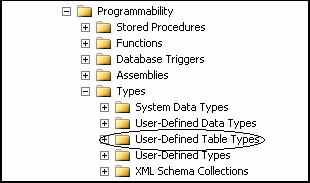 Image 1 At the time of this writing, RC0 is the latest release of SQL Server 2008, and the only way to create this new object is with a T-SQL script. I’m not sure it this will change with the released version, known as RTM, but it is not difficult to create the type. I found that there is a right-click option “New User-Defined Table Type…” that creates a template in the Query Window shown in Image 2. 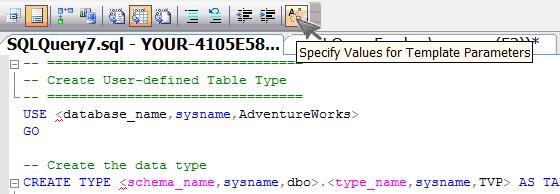 Image 2 By clicking the “Specify Values for Template Parameters” button, a dialog box pops up that will help complete the definition. Image 3 shows the dialog box after some of the values have been modified.  Image 3 After filling in the appropriate values and clicking OK, a CREATE TYPE statement replaces the template. At this point, additional columns and constraints can be added before clicking OK. Here is the code that was generated: -- ================================
-- Create User-defined Table Type
-- ================================
USE Test
GO
-- Create the data type
CREATE TYPE dbo.MyType AS TABLE
(
col1 int NOT NULL,
col2 varchar(20) NULL,
col3 datetime NULL,
PRIMARY KEY (col1)
)
GO
After running the code, the object definition is created and viewable in the “User-Defined Table Type” section (Image 4). You can view the properties there, but not modify them. To modify the type, you will have to drop it and then create it again with the modified definition. 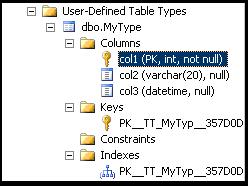 Image 4
Using the User-Defined Table TypeSo far, it seems like we have done quite a bit of work, but we only have the type definition created. Like other programmable objects, it will stick around unless it is dropped. To use it in T-SQL code, you must create a variable of the new type and then populate it as you would any other table. Once it is populated, you can use it in other T-SQL statements. Because it is a variable, it goes out of scope automatically when the batch is completed. Notice in the code below that the name of the data type is the same as the type we just created. DECLARE @MyTable MyType INSERT INTO @MyTable(col1,col2,col3) VALUES (1,'abc','1/1/2000'), (2,'def','1/1/2001'), (3,'ghi','1/1/2002'), (4,'jkl','1/1/2003'), (5,'mno','1/1/2004') SELECT * FROM @MyTable As long as the variable does not go out of scope, you can do just about anything with it that you can do with a regular table variable, such as join another table or be used to populate another table. Like a table variable, you can not modify the table definition. As I mentioned, the variable is gone once it goes out of scope. For example if you have a T-SQL script that is composed of more than one batch, the variable is only valid within the batch where it was created. Using the Variable as a ParameterSo far, we haven’t seen anything that is not possible with a regular table variable. The benefit is being able to pass the variable of the new type to a stored procedure. A stored procedure must be created that uses the new type. Here is an example of that along with the code to create a regular table that we will be populating. USE [Test] GO CREATE TABLE [dbo].[MyTable] ( [col1] [int] NOT NULL PRIMARY KEY, [col2] [varchar](20) NULL, [col3] [datetime] NULL, [UserID] [varchar] (20) NOT NULL ) GO CREATE PROC usp_AddRowsToMyTable @MyTableParam MyType READONLY, @UserID varchar(20) AS INSERT INTO MyTable([col1],[col2],[col3],[UserID]) SELECT [col1],[col2],[col3],@UserID FROM @MyTableParam GO Notice the READONLY qualifier after the table parameter. This is required because a copy of the user-defined table variable is not passed to the procedure. To be more efficient, a pointer is passed to the proc. Therefore, to eliminate changes to the variable inside the proc that would affect the original, no changes are allowed. Finally, let’s put it all together and call the stored procedure. In the next code snippet, code from the previous section is used to create and populate the variable. DECLARE @MyTable MyType INSERT INTO @MyTable(col1,col2,col3) VALUES (1,'abc','1/1/2000'), (2,'def','1/1/2001'), (3,'ghi','1/1/2002'), (4,'jkl','1/1/2003'), (5,'mno','1/1/2004') EXEC usp_AddRowsToMyTable @MyTableParam = @MyTable, @UserID = 'Kathi' SELECT * FROM MyTable In order for a user to use the User-Defined Table Type, EXECUTE or CONTROL permission must be granted. This is the command to grant permission to a user: GRANT EXECUTE ON TYPE::dbo.MyType TO TestUser; Calling from a .Net ApplicationThe coolest way to use the table-valued parameter is from a .Net application. To do so, you need to have .NET 3.5 installed and make sure you are using the System.Data.SQLClient namespace. This gives you a new SQL data type called Structured that you will use when creating the parameter. First create a local DataTable and populate it. Be sure that the DataTable that you create matches the user-defined table type’s column count and data types. 'Create a local table
Dim table As New DataTable("temp")
Dim col1 As New DataColumn("col1", System.Type.GetType("System.Int32"))
Dim col2 As New DataColumn("col2", System.Type.GetType("System.String"))
Dim col3 As New DataColumn("col3", System.Type.GetType("System.DateTime"))
table.Columns.Add(col1)
table.Columns.Add(col2)
table.Columns.Add(col3)
'Populate the table
For i As Integer = 20 To 30
Dim vals(2) As Object
vals(0) = i
vals(1) = Chr(i + 90)
vals(2) = System.DateTime.Now
table.Rows.Add(vals)
Next
Since we will be working with a stored proc, create a command object and add the two parameters. This code assumes that you have an open connection to your test database. 'Create a command object that calls the stored proc
Dim command As New SqlCommand("usp_AddRowsToMyTable", conn)
command.CommandType = CommandType.StoredProcedure
'Create a parameter using the new type
Dim param As SqlParameter = command.Parameters.Add("@MyTableParam", SqlDbType.Structured)
command.Parameters.AddWithValue("@UserID", "Kathi")
Notice the data type of the @MyTableParam parameter. This is the new type added with .Net 3.5 to work with this new functionality. Finally, assign the local table to the parameter and execute the command. 'Set the value of the parameter param.Value = table 'Execute the query command.ExecuteNonQuery() ConclusionThe table-valued parameter feature introduced with SQL Server 2008 has been sorely needed. It will allow developers to write much better performing applications by decreasing round-trips to the server and by letting SQL Server work how it does best – on sets of data. It is not difficult to use once all the pieces are put into place.
|
- Advertisement - |